# Get started in just 2 steps 🔥
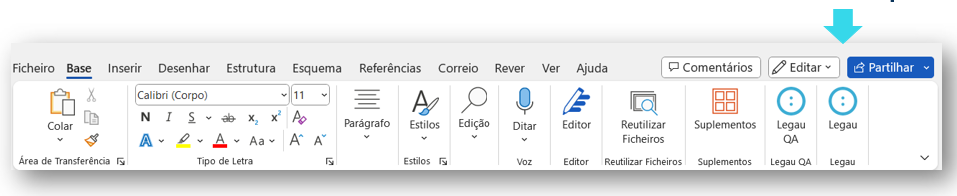
To start using Legau in Microsoft Word, follow these 2 steps:
1. Start **Microsoft Word** and click on the Legau icon in the top right corner.
2. To log in, enter the **access data** you use to log in to your computer.
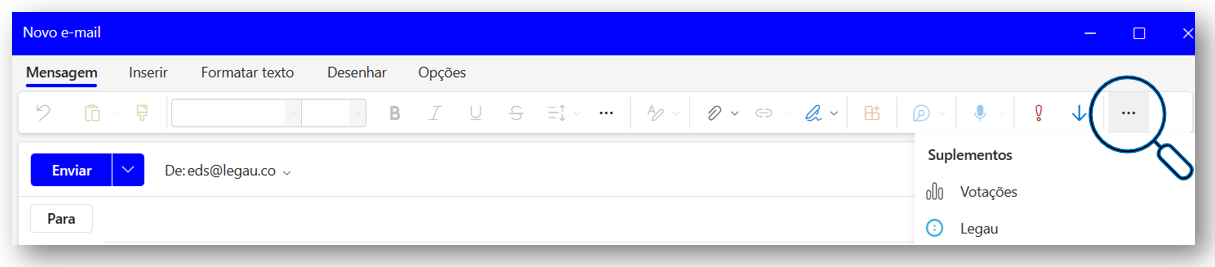
To start using **Legau** in **Outlook**, follow these 2 steps:
1. Open an email and click on "more options" in the top right corner.
2. Click on open Legau and you're done. You can start using Legau.
{% hint style="info" %}
**Note:** On some versions of outlook, you can find Legau already displayed in the top tab.
Legau in Outlook will be visible in the add environment (e.g. when you are opening an email or a reply message).
{% endhint %}
**All done! Now you can start using Legau!💪**
It's time to explore the tabs and start discovering our resources!
🔍FAQS
**What do I do if Legau is not visible in the top right corner?**
1\. Click on "Insert" and select "My Add-ins"
2.Select "Admin Managed" and click on "Refresh"
3\. Legau should now appear and all you have to do is click on "Add"
After these steps, Legau should be available in the word bar.
**The Legau icon is still not visible - what do I do?**
We suggest that you install Legau manually using the following steps:
1\. Click on "Insert" and select "My Add-ins"
2\. Select the store option and search for Legau in the search bar. Then click on "Add"
Finally, all you have to do is accept the terms and conditions and Legau will be installed.